Sealion 7
Written for the Sealion 7 (DiLink 5.0, Android 11). What every menu in Settings does.
Installing
You only do this once. The exact commands are on the download tab of the home page.
It is easier from a phone
Put your phone on the same Wi-Fi as the car, connect to wireless ADB with one of these apps and install the APK straight from it. No computer, no cable.
From a computer
- Download the APK. Anyone can get the release from the download page; test builds need a download key.
- Grant one permission. WRITE_SECURE_SETTINGS — with it, the launcher switches wireless ADB on by itself at every start.
- Make Beetle Launcher the home app. You do this under Settings › System › General.
AdbKick is built into the launcher. You do not need to install it separately, and if you already have it the launcher does not call it.
AdbKick is a separate app if you only want wireless ADB without the launcher. Manual →
AutoLaunch has been merged into AdbKick. AdbKick manual →
The screens
Swipe left and right between pages. Drag to reorder them under Settings › Display › Pages.
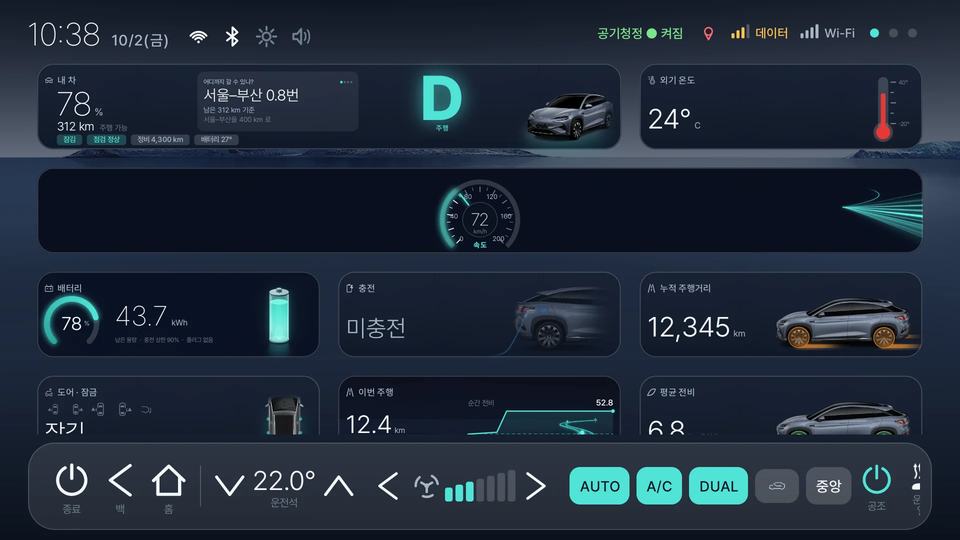
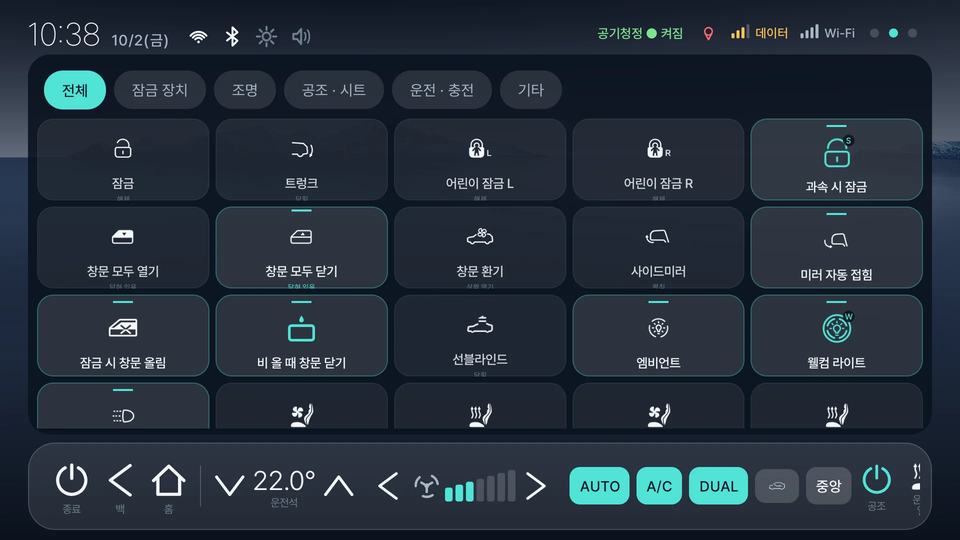
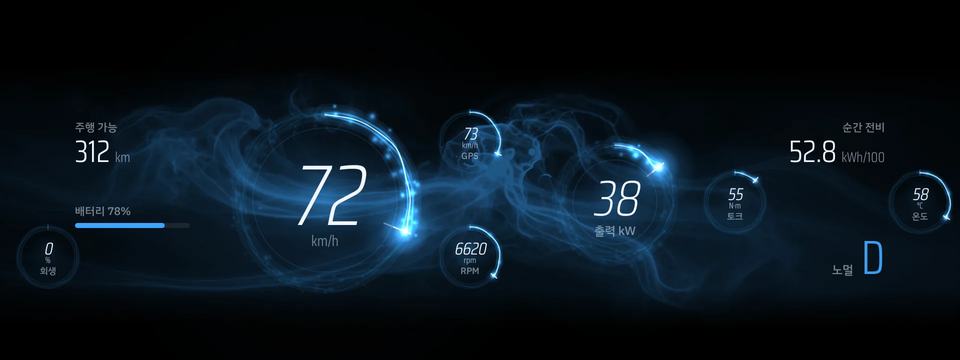
Launcher screen captures (Beetle theme; cluster in Plasma Ring) — not photos of a car
Settings by menu
Open it from the settings button on the dock. The left column holds 7 groups; the row along the top of each is its tabs. Below follows the app's own order — 192 items as of release 2.22.
No setting matches.
Display
Everything about how the home screen looks. Choose the overall design under Theme, then adjust that theme's colours, font, background and page-1 tiles under Dashboard, the swipe order under Pages, and the bar at the bottom (or top) under Dock.
Settings › Display ›Theme
Where you choose the launcher's overall design. Picking one under Theme changes the dashboard, dock and cluster together. Built-in themes you do not use can be removed with Delete themes. My car info panel and Theme-colour ambient keep the same value whatever theme you use.
Picks the theme. The dashboard, dock and cluster all switch to that theme's look. Looks such as accent colour, font, brightness, wallpaper and dock style, and where the tiles sit, are saved per theme, so switching away and back keeps them.
Pick one or more built-in themes you do not use and remove them from the list. Beetle and custom themes are not offered. A deleted theme cannot be brought back; if you delete the one in use, the launcher switches to Beetle.
Turns on enemy mechs inside the Mobile Suit cluster that close in as your speed rises. This row only appears while the cluster uses the Mobile Suit design, and it starts off.
Shows or hides the info panel in the middle of the My car tile — how far you can go, money saved, your time together, and a one-line note. Tap the panel to move to the next one. Turn it off and the gear and car picture go back to their old places. Applies to every theme.
Sets the interior ambient lighting to the car colour closest to the current theme's signature colour, and follows when you change theme. Turning it off restores the colour and on/off state from before.
Settings › Display ›Dashboard
The current theme's name is at the top; the rows below are that theme's settings. Some rows only exist in some themes (background only in Beetle and Sunshine, no brightness in Mobile Suit). Speed tile gauges picks what the speed tile shows and how; Units picks the units for tyre pressure, torque and speed. Tile layout turns page-1 tiles on or off and sets their width. In the Mobile Suit theme the Cockpit cameras settings follow at the bottom — each window (front, left, right, rear) has its own values, and a window you have not touched uses the camera menu's values.
Picks light or dark text automatically, to suit the background.
Returns the current theme to how it shipped. Only what you changed in this theme is lost; other themes are untouched.
Dark or light screens.
OptionsDarkBright
The accent colour for buttons and type. The wallpaper stays; only this colour changes.
The typeface for the whole launcher. It changes as soon as you pick one.
How the tiles are drawn.
Whether to show the clock and date at the top of the first page.
Whether times are shown on a 24-hour or 12-hour clock.
Options24-hour12-hour
Background picture for landscape. Only the Beetle and Sunshine themes have this row; other themes use their own background.
Background picture for portrait. “Same as landscape” uses the landscape choice. Only the Beetle and Sunshine themes have this row.
Hides the Android status bar and uses the whole screen.
Speed tile gauges
How quickly the gauge needles follow the value.
How the speed itself is shown.
OptionsDigitalAnalog
Speed measured by satellite. It differs from the car's own speed by a few km/h.
OptionsHiddenDigitalAnalog
Motor revolutions.
OptionsHiddenDigitalAnalog
Whether motor torque is shown in N·m, kgf·m or lb·ft.
OptionsHiddenDigitalAnalog
Motor temperature.
OptionsHiddenDigitalAnalog
Whether the dashboard speed tile shows a regenerative-braking dial.
OptionsHiddenDigitalAnalog
Sets how high the gauges sit inside the speed tile.
Size of the gauge inside the dashboard gauge tile.
Units
Whether tyre pressure is shown in bar, psi or kPa.
OptionsbarpsikPa
Whether speed is shown in km/h or mph.
Optionskm/hmph
Cockpit cameras
When a car or a person appears in one of the Cockpit cameras windows, it is marked with a red box and “ALERT”. FRONT, REAR, LEFT and RIGHT below choose which directions to watch; only windows shown on the tile are checked. Live view under Settings › Cluster · Camera › Camera must be on.
Whether this camera window shows the raw fisheye picture or one with the lens curve straightened out.
OptionsOriginalStraightenedSmooth
Mirrors this camera window left to right. The pan value is flipped along with it, so the window keeps looking the same way.
How strongly the lens curve is straightened in this camera window.
How wide a view this camera window takes in. Wider shows more, but smaller.
How tall a view this camera window takes in.
Turns where this camera window looks, left or right.
Tilts where this camera window looks, up or down.
Settings › Display ›Pages
The order of the pages you swipe between on home. Each row shows the page number and name. The first two pages (Dashboard and Car functions, or Background home and Car functions in the Sunshine theme) are fixed and cannot be moved, and the Apps page is always last. Pages in between — such as Drive log, which appears when the drive log is on — can be reordered by dragging the ≡ handle. There are no on/off switches here: a page appears when its feature is turned on in its own settings.
Settings › Display ›Dock
The bar that is always on screen. Each of the climate, control and media rows can go to the bottom dock or a top dock, and you can add a row of car-function buttons and app icons. The Media button opens the media centre. The dock's style, size, colour and row placement are saved per theme.
Dock row placement
For each dock row — climate, control, media and car functions — choose whether it sits in the bottom dock or in a separate dock at the top of the screen.
OptionsBottomTop
Car functions in the dock
Whether the dock carries a row of vehicle-function buttons. “Edit items” picks which ones.
Default — the usual look. Glass — a see-through glass panel.
OptionsDefaultGlass
Rounded or square dock corners.
OptionsRoundedSquare
How tall the dock is.
OptionsSmallNormalLarge
Dock colour. “Default” is the usual colour. Only shown in the Beetle theme, and saved per theme.
Adds a “Float” button to the dock. Tap it and the launcher steps back, leaving a small button on screen; tap that to bring the launcher back. It needs permission to draw over other apps, which is granted over wireless ADB when you turn it on.
Size of the floating button.
How solid the floating button looks. Lower is more see-through.
Moves the floating button back to its default place.
Whether app icons sit in the dock.
Whether names appear under the icons.
Which app the music controls talk to.
“Edit apps” picks what goes in the dock.
Cluster · Camera
Settings for the instrument cluster beyond the steering wheel (1920×720) and the turn-signal and reversing cameras shown on it. The car (QNX) uses the top and bottom strips of the cluster; the launcher uses the middle.
Settings › Cluster · Camera ›Cluster
The “Cluster” row at the top picks what the cluster shows. “Song info” and “Media-centre track on stock cluster” are there in every mode; the styling rows only appear in Beetle and Beetle + nav. If the theme uses the gauge cluster you get the background, the horse, “Cluster gauges” (speedometer plus GPS speed, motor RPM, torque, motor temperature and regen, each hidden, digital or analog — up to five including the speedometer), digit colour, glow, gauge layout, style and size; with “Gauge layout” on Free you drag gauges on the “Gauge positions” pad. If the theme has its own cluster design, that design’s background, position and size and the “Cluster layout” pad appear instead. The background rows (background type, solid colour, darken photo, per-mode background) can only be changed with the Beetle and Sunshine themes. The “Overlay layout” pad at the bottom sets the position and size of the song info, guidance window, turn-signal camera windows and horse, separately from the gauges. On a pad, drag with one finger to move, tap to select, pinch to resize. The top and bottom strips of the cluster are drawn by the car (QNX), so anything placed there is covered.
Cluster screen
What the cluster shows. Off — stock, the launcher leaves it alone. Stock + camera — the turn-signal camera in the stock cluster's right pane. Beetle — the launcher's cluster. Beetle + nav — Beetle gauges with a small TMAP window. Nav — TMAP full screen.
Shows the track name on the cluster for 5 seconds when the song changes.
Where the wallpaper comes from.
OptionsSolidStock backgroundMode color
The colour used when the background is set to a flat colour.
Darkens the background photo so the numbers on top of it stay readable.
Options0%20%40%60%80%
Sends the track playing in the media centre to the stock cluster’s media panel. Works even when the launcher’s cluster is not in use.
Cluster background per mode
A horse runs along the bottom-left of the cluster with your speed. Its colour follows the drive mode.
How high the horse runs. Too low and it hides behind the stock strip; too high and it crosses the gauges.
Overlay layout
How items move on the layout pad: Free follows your finger; Grid snaps them to a grid.
OptionsFreeGrid
Resizes the item selected on the pad with a slider, from 50% to 200%. It stops before the item would leave the cluster screen.
“Reset position” puts just the selected item back to its original place and size.
Clears the dragged gauge positions and per-gauge sizes and goes back to the “In a row” layout.
Cluster gauges
How the speed itself is shown.
OptionsHiddenDigitalAnalog
Speed measured by satellite. It differs from the car's own speed by a few km/h.
OptionsHiddenDigitalAnalog
Motor revolutions.
OptionsHiddenDigitalAnalog
Motor torque.
OptionsHiddenDigitalAnalog
Motor temperature.
OptionsHiddenDigitalAnalog
Whether the cluster shows regenerative braking.
OptionsHiddenDigitalAnalog
Colour of the cluster's seven-segment digits. “Mode” follows the drive-mode colour.
Colour of the glow around those digits. “Off” draws no glow.
How far that glow spreads. Hidden while glow is off.
In a row — gauges side by side. Free — drag each gauge where you want it; switching to Free starts from the current layout.
OptionsOne rowFree
Moves the cluster gauge board up or down.
Picks the look of the cluster dials: Original, Design 1 or Design 2. The background stays as it is.
OptionsClassicDesign 1Design 2
Size of the gauges on the cluster.
Gauge position
How gauges move on the Gauge positions pad: Free follows your finger; Grid snaps them to a grid.
OptionsFreeGrid
Settings › Cluster · Camera ›Camera
Sets up the cameras the cluster shows when you signal or reverse. Where the camera window sits on the cluster and how big it is is set in the Cluster tab’s “Overlay layout”; this tab fits the picture inside the window. Turning on “Turn-signal camera” opens the calibration rows below, with a live preview on the left; the preview needs wireless ADB on to get a picture. “Copy to both” copies the current side’s values to the other side (not shown for the rear). With “Reverse view” on Top view + rear, rows appear for the top-view range, the seams and the rear field of view; for each of the four cameras’ yaw, pitch, roll, brightness, mirroring and mounting position (left-right, front-back, height); and for the car’s width, length and bumper distance. Camera values are stored as offsets from the stock calibration, and “Stock calibration” sets every offset back to zero.
Turn-signal camera
Shows the side camera on the cluster when you signal. It cannot be switched on while the cluster is set to Off, or while the Mobile Suit theme’s cockpit camera tile is showing.
Has the shell bridge draw the camera picture straight onto the screen at full quality. Off goes back to the old way, where the app receives and draws each frame. Vehicle boxes, the blind-spot border and Top view + rear need it on.
Draws boxes around vehicles and people found in the turn-signal camera picture. Needs Live view on.
When the car’s blind-spot warning is on and a vehicle is found in that camera window, the window’s border turns thick and red. Needs Live view on.
Reverse camera
What the cluster shows when reversing. Classic follows “Side camera in reverse” below; Top view + rear shows a bird’s-eye view on the left and the rear camera on the right. Top view + rear needs Live view on.
OptionsClassicTop view + rear
Which cameras the Classic reverse view shows: off, left, right, both, or three ways (left, rear, right). Three ways adds each direction’s parking-sensor distance to its window; with several cameras at once the picture is coarser.
OptionsOffLeftRightBothThree ways
Top view + rear
Puts the Top view + rear picture on the cluster even when not reversing, so you can watch it while adjusting the values below. Needs the launcher’s cluster and Live view on.
Draws guide lines over the Top view + rear picture, using the values under “Car size · guide-line reference” below.
Flips the camera picture left to right, like a mirror.
Turn-signal camera correction
Picks the camera the settings below apply to. Left, right and rear each keep their own values.
OptionsLeftRightRear
Off shows the picture as captured; Light removes the lens bulge; Normal and Strong straighten lines; Box fills the window with the whole frame.
OptionsOffLightNormalStrongBox
How strongly the Light correction straightens the lens bulge. The row only appears with Light.
How wide a horizontal angle Normal and Strong correction take in, 70° to 140°.
How tall a vertical angle Normal and Strong correction take in, 50° to 110°.
Where, top to bottom, the shown band starts in the picture. Lower shows more ground; higher brings in the horizon.
Turns the view left or right. 0 is straight ahead; turn it rearwards if the camera mostly shows the side of the car.
Turns the view up or down. 0 is straight ahead.
How tall a band of the picture is shown. Not used with Box, so the row is hidden then.
Shows both side cameras even when you signal one way.
Shows both side cameras when the hazard lights are on. Off by default.
Connects to the cameras as soon as you shift into D so the picture appears the moment you signal. Frames only flow while signalling, and a car that cannot connect stops trying after a few attempts.
Shows the turn-signal camera in a round window; off gives a rectangle. Applies to both sides.
Car
What page 2’s car functions show, and the drive and charge logs.
Settings › Car ›Car functions
Shows, for each category of page-2 car functions, how many are shown and how many hidden; functions this car does not support are not counted. “Edit items” lists them by category tab: for each one choose whether it shows, whether it is pinned to the top (★), and whether it goes on the dock (up to five). Reorder them on page 2 by long-pressing and dragging. Automation is switched off in 2.22 and only shows “Testing”.
How the page-2 controls are drawn.
OptionsBoxesIcons
Automation
Ties several controls to a trigger and runs them together. It is switched off for now while it is being tested.
Changes that automation sequence’s name, trigger, and the switches it turns on and off.
Settings › Car ›Drive log
Turning on “Drive log” adds a Drive log page to home. “Speed”, “Power use”, “Route (GPS)” and “Cost” each switch one item in the log on or off. “Charge price” is shared by the drive-log cost, the charge log, the taxi meter and the My car tile, so it stays visible even with the log off. Turning on “Charge log” adds a Charging tab to the same page that records every charge. “Clear log” cannot be undone.
Adds a Drive log page to home that groups each trip, start to switch-off, by day.
Keeps average and top speed and the speed graph in the drive log.
Records power use in the drive log.
Records the route in the drive log. It shows exactly where you went, so it can be turned off on its own.
Shows what each trip cost in electricity, using the charging price below.
Enter the price per kWh and charging cost is worked out for you.
Price of a litre of petrol, used for the “Money saved” figure on the My car tile: what this month’s distance would have cost in petrol, minus the electricity used.
Deletes that whole log. This cannot be undone.
Charging log
Adds a Charging tab to the drive log page that records every charge.
The car's battery capacity in kWh, used to work out kWh from the percentage gained when consumption cannot be read.
Sound · Voice
The launcher's announcement sounds, and the settings for the Gemini-based voice assistant and AI chat.
Settings › Sound · Voice ›Sound
Sounds that play when something happens: drive mode, gear, ACC or ICC changes, a car entering the next lane, passing the speed you set, starting the car, and pressing a switch. Rows with a bar set the volume; all the way left is off. The ACC, ICC, vehicle-approaching and over-speed announcements start out off. Greeting appears only with a Gemini key, and the “Hi BYD” wake word row only on units with the stock voice assistant.
When drive mode changes
Says the drive mode out loud when it changes.
Plays an exhaust note in Sport mode.
Ducks the music while the announcement plays. An app cannot go louder than the system volume, so the only way to be heard is to make the music quieter.
When shifting
Says the gear out loud when you change it.
When ACC / ICC changes
Says when ACC (adaptive cruise) turns on or off. The bar is the volume; all the way left is off.
Says when ICC (lane centring) turns on or off. The bar is the volume; all the way left is off.
When a car enters the next lane
Says “vehicle approaching” when a car enters the next lane, using the car's blind-spot detection. The bar is the volume; all the way left is off.
Below this speed, approaching cars are not announced — so it does not keep talking in traffic.
When over speed
Sounds when you pass the speed you set — your own number, not the road's limit. The bar is the volume; all the way left is off.
The speed at which the overspeed sound plays.
Choose the sound used for the overspeed warning.
Optionsoverspeed
On startup
Greets you once when you start the car. On the day's first start between 4 a.m. and 11 a.m. it reads out the battery level and range; at other times it greets you to suit the time of day and the weather. Shown only when a Gemini key is set.
When pressing a switch
Whether pressing a car-control switch plays a click sound or says what changed (“ventilation level 2”).
OptionsSoundVoice
How loud the switch feedback is. All the way left is off.
Stock voice assistant
Turns on or off whether the stock voice assistant wakes up to “Hi BYD”. Shown only on units that have the stock voice assistant.
Settings › Sound · Voice ›AI settings
This is where the Gemini key goes, so the tab is always visible even without a key. Everyone gets their own key from Google AI Studio. Once a key is set, the chat and speech model choices and the Voice assistant rows appear — the mic button, speaking speed, voice volume, the “Hi Beetle” wake word and so on. The floating mic hides while you are in Settings.
Gemini
Enter your own Gemini API key from Google AI Studio. It is stored only on this unit; “QR” reads it from a QR picture instead. Voice control, the greeting and AI chat appear only once a key is set.
Picks the Gemini model used for chat and voice control. The list is fetched from Google with your key; a model that is not listed can be typed in by name. Changing the model starts the AI's conversation memory over.
Picks the Gemini speech model that turns the AI's replies into sound. Auto tries the models in order until one works. Choosing one plays a sample line with it.
Voice assistant
Shows the mic button. Tap it and speak: Gemini works out what you said and either operates a car function or answers out loud. Needs a Gemini key.
How fast the AI speaks (70–160%). The pitch stays the same. Let go of the slider to hear a line at that speed.
How much the AI voice is boosted (100–300%). Let go of the slider to hear a line at that level.
When on, the stock voice assistant's wake word becomes “Hi Beetle”; when the stock assistant wakes, its dialog is closed and Beetle Launcher's AI chat opens instead. While it is on, conversations started with the steering-wheel voice button or the stock voice icon also go to the Beetle AI. Turning it off restores the original wake word.
Floats the voice button on top of everything. It works while another app such as navigation is on screen, and tapping it does not bring the launcher forward. Drag it to move it.
When on, the mic button stays hidden. Double-tap the launcher screen to bring it out; double-tap again to hide it.
Phrases you taught on the spot when a command was not understood. Remove a wrong one here.
Moves the floating mic back to its default place. Use it when it has ended up off screen.
Settings › Sound · Voice ›AI chat
This tab appears only once a Gemini key is set. AI chat itself opens from its button on the dock. Under Voice at the top there is one row per character: tap it to pick the voice that character uses and hear a sample line. Under About me you can fill in what to call you, gender, age, MBTI, home town, where you live, family, job, personality and interests, and the AI takes them into account when chatting. Empty fields are left out, and they can only be filled in while parked.
Voice
Reopens the mic as soon as the AI finishes answering. It only keeps listening while the AI chat screen is open, and closes by itself if you say nothing. When off, it listens only when you tap the mic.
About me
Fills in or edits one field of About me. Gender and MBTI are picked from a list; the rest are typed. Can only be filled in while parked.
Nav · Media
The navigation app, app windows, and the internet radio and TV lists used by the media center.
Settings › Nav · Media ›Navigation
Chooses which navigation app to use and what goes in the column on the right of the navigation screen. Navigation is not a swipe page; it shows in the nav centre, opened from the dock or the apps page. Turning on Right column adds rows for Slot 1 to Slot 4, and each slot can be Empty, the media center or a dashboard tile. Up to three tiles can be used, and picking one that is already in another slot moves it. With a non-Korean language the tab stays but only offers the app choice, with “None selected” at the end of the list.
Picks the navigation app shown in the nav centre. Installed stock navigation (TMAP Auto) and apps such as Naver Map are listed; for anything else, “Other app…” lists every installed app. For the app to open as a window, Freeform window must be on in the App windows tab.
When on, the right 20% of the navigation screen becomes a column. Its four slots, top to bottom, can hold the media center or dashboard tiles.
Settings › Nav · Media ›App windows
Settings needed to open another app, such as navigation, as a window floating over the launcher. The window uses Android's freeform-window feature, so turn on Freeform window and then switch the car off and on once.
Turns Android's freeform-window developer option on or off over wireless ADB. It takes effect from the next start, after the car has been switched off once; the row shows On, From next start or Off. Wireless ADB must be open.
Hides the stock bottom dock and top status bar while an app window is open. The bars come back while you type in a text field inside the window. Turning it off restores them immediately.
Settings › Nav · Media ›Internet radio
The list of stations. Listening happens on the Radio tab of the media center (the Media button on the dock). Below, each station has a row with its name and address, marked “added” or “edited” where that applies, and its own Fix and Delete buttons. Addresses can be a stream URL, .pls or .m3u8.
Stations
Add one by hand with a name and a URL.
Reads beetle-radio.txt from the Download folder into the list. A line of the form “id=URL” changes a built-in station's address; “name|URL” adds a station.
Drops your edits to built-in entries and brings back any you hid. Entries you added yourself are kept.
Edits that entry's name and address. Built-in entries can be put back with Default. Delete, next to it, removes an entry you added and hides a built-in one.
Settings › Nav · Media ›Internet TV
The list of channels. Watching happens on the TV tab of the media center. When a channel starts, a “do not watch while driving” notice covers the picture for a moment. Below, each channel has a row with its name and address and its own Fix and Delete buttons. Addresses are .m3u8 links.
Channels
Add one by hand with a name and a URL.
Reads beetle-tv.txt from the Download folder into the list. A line of the form “id=URL” changes a built-in channel's address; “name|URL” adds a channel.
Drops your edits to built-in entries and brings back any you hid. Entries you added yourself are kept.
Edits that entry's name and address. Built-in entries can be put back with Default. Delete, next to it, removes an entry you added and hides a built-in one.
System
Permissions and defaults the launcher needs to run properly in the car. Right after installing, start with System setup.
Settings › System ›Normal
Defaults that apply to the whole launcher: hardware usage, the day you got the car, switches that bring up the launcher and the turn-signal camera at start-up, language and region, and the default home and split screen.
“View” opens a window with CPU, GPU and memory use, refreshed every second. Values the system will not give are shown as “—”.
Enter the day you took delivery of the car. The «days together» count on the My car tile starts from this day as day 1.
At boot, or when the screen comes back on, brings Beetle Launcher to the front if the stock home is showing. It does not cover another app, such as navigation, that is already in front.
Starts the turn-signal camera ahead of time when the car starts. If the turn-signal camera is off this does nothing. Needs wireless ADB.
Picks Korean or English for the launcher. Which domestic or overseas features you get is set separately by Region below.
OptionsKoreanEnglish
Chooses domestic (Korea) or overseas behaviour. Navigation hand-off, the default radio and TV lists and the support QR codes follow it. The line under it shows the country code the car reports.
OptionsKoreaOverseas
An indicator showing whether Beetle Launcher is the default home right now. If it is off, the home key does not come to the launcher.
Shown only while another app is the default home. Sets Beetle Launcher back as home through wireless ADB; if that fails it says why and then opens the system home chooser.
Split screen
An indicator: whether this car can split the screen right now.
This car cannot put the home app into split screen. Hand the home role back to the stock launcher and Beetle Launcher can go into a split.
Settings › System ›System setup
Do these in order right after installing. ① Check that wireless ADB is open (it already is if you installed the APK over wireless ADB). ② Press “Self-grant” and choose “Always allow” on the car's “Allow USB debugging” prompt — accessibility is registered along with it. ③ Check that the Accessibility and Notification access lights are on; if not, press “On”. ④ Under System › Normal, confirm that Beetle Launcher is the default home. This car switches wireless ADB off when it reboots, so after that turn it back on with “Turn on in one go” or “switch on when the launcher starts”.
The permission the launcher uses to tap through stock screens for you. “On” registers it; if self-grant has not been done yet, it runs self-grant over wireless ADB first.
The light shows whether wireless ADB is open now. “Turn on in one go” rotates the screen to portrait, presses the switch on the stock ADB screen for you, and rotates back. Accessibility must be on.
Whether the screen is also turned to portrait when the launcher switches wireless ADB on in other cases, such as installing an update. “Turn on in one go” and “switch on when the launcher starts” always rotate regardless.
Each time the launcher comes up it checks wireless ADB and re-arms things like notification access and accessibility. It does not switch ADB on — that is the next row.
When the launcher is in front, the car is stopped and wireless ADB is off, it switches it on (at most once every 30 minutes). If accessibility is off it opens the ADB screen in portrait so you can switch it on by hand.
Whether the ADB screen stands at 90° or 270° when it is turned portrait. The upright portrait is not the same on every car. Putting it back uses the value read before the turn, so this setting does not affect that.
Options90°270°
The permission used to read the title and cover of the track that is playing. “On” registers it; self-grant has to be done first.
Connects to the car over wireless ADB and grants the launcher permissions such as WRITE_SECURE_SETTINGS. When “Allow USB debugging” appears on the car screen, choose “Always allow”. Accessibility is registered along with it.
Settings › System ›API keys
Weather needs no key. The Gemini key is now entered under Sound · Voice › AI settings; this screen keeps the one row for moving keys by QR. The QR holds the keys as they are, so do not show it to others.
“My keys as QR” shows the keys you have entered as a QR code. Put a photo of it into the other car's picture folder and press “Read” to load all the keys at once.
About
Version, updates and your agreement record, plus the support QR codes.
Settings › About ›About
The installed version and build, the last install result, this car's tag and device details, your agreement record, what the launcher does to the car, and update checks. When reporting a problem, a photo of this screen carries the version and tag.
The version installed right now.
The commit that build came from.
An eight-character tag made the first time the app ran (followed by your nickname if you set one). Include it in a photo when you report something so the car can be told apart. It is not personal data such as the VIN.
The state of the connection to the car's SDK.
Which app is the default home right now (Beetle Launcher, not set, or the other app's name).
The head unit's maker, model and Android version.
This screen's size and density.
Your agreement
When you agreed and to what. “Read it again” shows the text you saw at the time.
What it does to the car
What this launcher reads from the car, what it taps, and what it never does.
Shown only if the screen ever froze for more than 25 seconds and the launcher handed home back to the stock launcher; it shows when that last happened. To use Beetle Launcher as home again, take it back under System › Normal.
Checks for a new release. The download runs in the background and you are asked before it installs. On a test build it takes you back to the release.
Fetches a test build. It needs the developer password and a download key, and is never fetched automatically.
Settings › About ›Support
Just two QR codes for support. With the region set to Korea they are Naver Pay and KakaoPay; overseas, Buy Me a Coffee and Ko-fi. The head unit has no payment app, so scan them with your phone.
When it does not work
The home button still opens the stock screen
The default-home setting has been cleared. If “Default home app = Beetle Launcher” under Settings › System › General is off, tap “Switch back to Beetle Launcher” just below it.
Wireless ADB keeps turning itself off
Run self-grant once under Settings › System › System prep and turn on the row that switches it on when the launcher starts. Accessibility must be on.
Another app covers the instrument cluster
Under Settings › Cluster · Camera › Cluster, pick your mode again — picking it sets that mode up again. To see TMAP alongside, pick “Beetle + nav”.
The weather is empty
There is no weather key. Add one under Settings › System › API keys. Everyone gets their own.
It will not update
Check under Settings › About › About — it tells you why it failed. This car blocks installs from a file manager. Put the phone on the car's Wi-Fi and install the APK from the download page with atvTools (iPhone) or Bugjaeger (Android) over wireless ADB.
Anything else
Which screen, what you did, what happened — with those three the cause can usually be found without the car. → Report a bug